claw-body
# 🦞 Claw Body — Give Your Claw a Body

**Every Claw deserves a body.**
Turn your OpenClaw AI into a real-time digital avatar — with a face, a voice, and expressions. Talk to your Claw face-to-face, not just through cold text.
**NEW: Presentation Mode 🎤** — Your Claw can now be a presenter! Load a PPT/PDF and let the avatar narrate your slides.
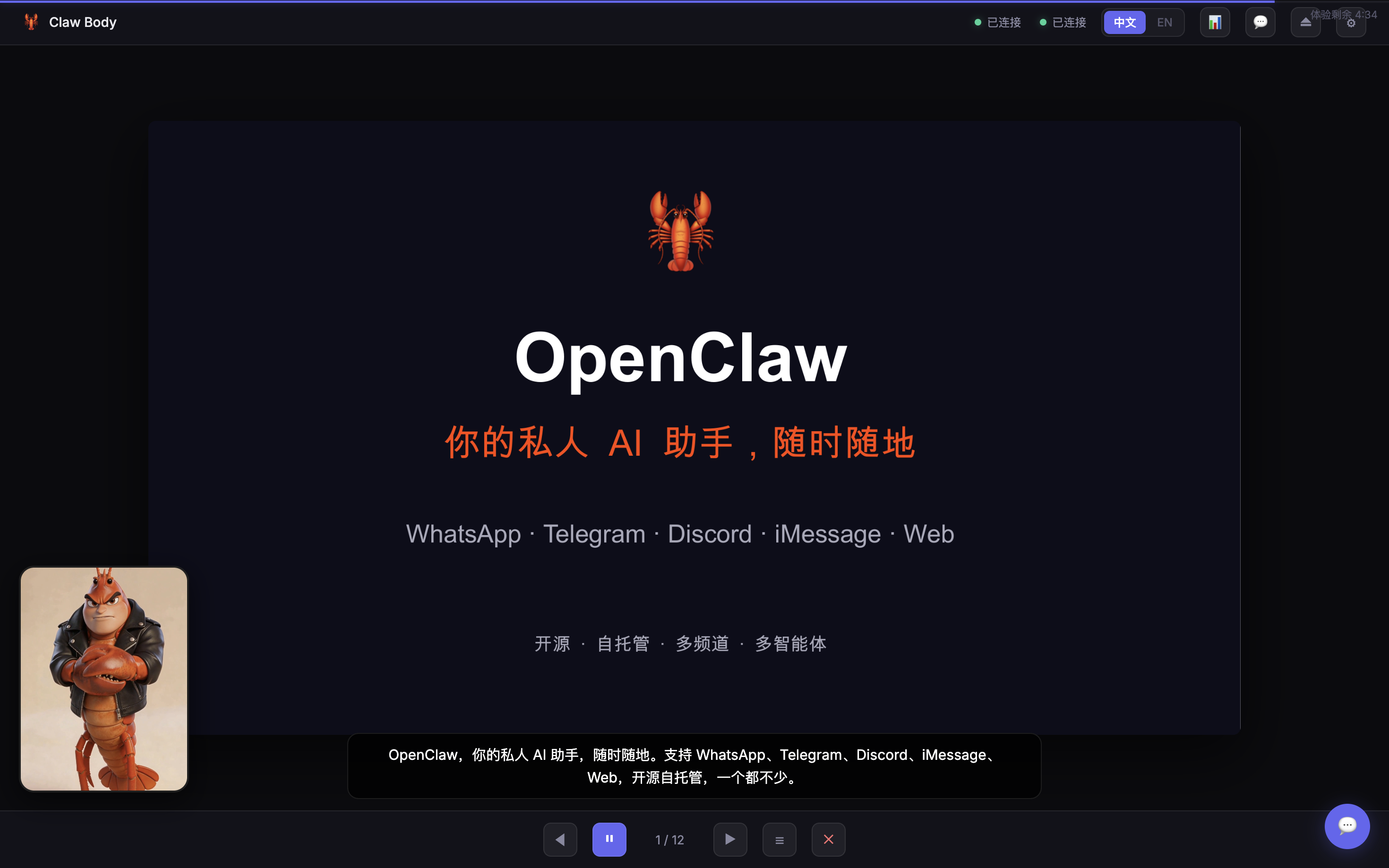
Free 5-minute trial included. Sign up at [nuwaai.com](https://nuwaai.com) to create your own custom avatar for free.
## For Every Claw Fan
- 🎨 **Design your dream Claw** — cute, anime, realistic, handsome, beautiful, or buff — your call
- 🗣️ **Voice chat** — speak to your Claw and hear it talk back with lip-sync
- 📺 **Real-time video** — see your Claw's expressions as it responds
- 🧠 **Same brain** — it's your OpenClaw agent, just with a face. Same memory, same personality
- 🌐 **中文 / English** — bilingual interface with language toggle
- 📊 **Presentation mode** — narrate PPT/PDF slides with digital avatar (works with claw-presenter skill)
## Quick Start
When user runs `/claw-body`:
1. **Start the server**:
```bash
node <skill-dir>/server.mjs
```
2. **Tell the user**:
> 🦞 Claw Body is live: http://localhost:3099
>
> Two options:
> - **Free trial** — chat with the demo Claw for 5 minutes
> - **Your own avatar** — sign up at [nuwaai.com](https://nuwaai.com) (free), create your dream look, then enter your API Key + Avatar ID + User ID
## How It Works
```
You speak → ASR transcribes → OpenClaw agent replies → Avatar speaks with lip-sync
```
This skill uses NuwaAI's **humanctrl** mode with ASR:
- Your voice → NuwaAI speech recognition → text
- Text → OpenClaw Gateway → agent generates reply
- Reply → drives the avatar's voice and lip movements
**Same agent, new interface.** The avatar is just another channel — like iMessage or Telegram, but with a face.
## Features
- 🎤 Real-time voice input (ASR)
- 🗣️ Lip-synced avatar speech
- 🧠 Same OpenClaw agent — not a separate bot
- 📺 WebRTC real-time video stream
- 💬 Text input fallback
- 📱 Auto-adapts to portrait / landscape / square avatars
- 🔧 In-browser config — zero env vars needed
- 🎁 Free 5-min trial with demo avatar
- 🌐 Chinese / English bilingual UI
- 🔄 Disconnect / reconnect controls
## Create Your Own Avatar
1. Go to [nuwaai.com](https://nuwaai.com) — sign up is free
2. Create your avatar — first one is free!
3. Get your **API Key**, **Avatar ID**, and **User ID**
4. Enter them in the Claw Body interface
5. Done — your Claw now has a body 🦞
## Requirements
- OpenClaw Gateway running
- NuwaAI account (free sign-up)
- Modern browser (WebRTC + microphone)
- Node.js 18+
## ⚠️ When User Asks to Present PPT/PDF
If the user says anything like "讲PPT"、"讲解PDF"、"帮我讲解演示文件" while in Claw Body:
**DO NOT open or operate any application (Keynote, PowerPoint, Preview) on the user's computer.**
Instead, follow this flow:
1. Ask for the file path if not provided
2. Run the Claw Presenter parse script:
```bash
python3 <workspace>/skills/claw-presenter/scripts/parse-presentation.py "<file-path>"
```
3. Read the generated `presentation.json`
4. For slides without scripts (`script` is empty), generate narration based on content
5. Update `presentation.json` with the generated scripts
6. Tell the user the presentation is ready and ask to start
7. When user confirms, reply with `[PRESENTATION_START:<output-dir>]` to enter presentation mode
8. Narrate slide by slide using `[SLIDE:N]` tags
## 📊 Presentation Mode (Slide Playback)
Claw Body supports a **presentation mode** for narrating pre-prepared slide decks.
### Prerequisites
Use the **Claw Presenter** skill first to prepare a presentation folder:
```
<workspace>/presentations/<name>/
presentation.json
slides/001.png, 002.png, ...
```
Each slide in `presentation.json` has an `image` path and a `script` (narration text).
### Entering Presentation Mode
When user wants to present a prepared folder, include this tag in your reply:
```
[PRESENTATION_START:<output-dir>]
```
### Narrating Slides
For each page, read the `script` field from `presentation.json` and reply with:
```
[SLIDE:1]各位好,今天我来介绍一下我们的产品方案。
```
The frontend automatically flips to the corresponding slide image.
### User Controls During Narration
- "继续" / "下一页" → advance to next slide
- "上一页" → go back
- "跳到第N页" → jump
- Any question → answer it, then user says "继续" to resume
- "退出讲解" → reply with `[PRESENTATION_END]`
### Control Tags
| Tag | Effect |
|-----|--------|
| `[PRESENTATION_START:<dir>]` | Enter presentation mode |
| `[SLIDE:N]` | Switch to slide N (1-indexed) |
| `[PRESENTATION_END]` | Exit presentation mode |
### Important
- **Do NOT operate PPT/PDF applications on the user's computer** — slides are shown in the browser
- Read narration from `presentation.json` `script` field — don't regenerate unless asked
- Keep a natural speaking pace, one slide at a time
## ⚠️ First-Time Setup (Important!)
Claw Body talks to your OpenClaw agent via the Gateway's chat API. This endpoint is **disabled by default** and must be enabled once.
When user runs `/claw-body`:
1. Read `~/.openclaw/openclaw.json`
2. If `gateway.http.endpoints.chatCompletions.enabled` is not `true`, tell the user to enable it manually:
> ⚠️ 首次使用需要启用 AI 对话接口,在 `~/.openclaw/openclaw.json` 中添加以下配置,然后重启 Gateway:
> ```
> openclaw gateway restart
> ```
> 重启后刷新页面即可。以后不需要再操作了。
Add this to `~/.openclaw/openclaw.json`:
```json
{
"gateway": {
"http": {
"endpoints": {
"chatCompletions": { "enabled": true }
}
}
}
}
```
标签
skill
ai







